Announcements and Rotating Announcements
All text that is displayed in the Announcement widgets is created and maintained under the Tools > Maintain Announcements screen. When a user logs into the LMS, the announcement widget will automatically display all active announcements for which the user is a member of the announcement audience. This means that different users may see different announcements in the announcement widget based on the audience of each announcement. The individual announcements will display in the order that they were created, with the most recent announcement displaying first.
There are two types of Announcement widgets. You should only have one announcement widget per page since they will always display the same announcement(s) for a given user.
- Announcement widget
- The Announcement widget lists all active announcements for that user in a long list.
- Rotating Announcements
- Each active announcement will show, one at a time, on rotation.
There are no customizable settings on the Announcement widget. The announcement text will automatically populate in a list format.
There are settings that can be customized for the Rotating Announcements widget. On the Settings tab of the Rotating Announcements widget, you can select the following options.
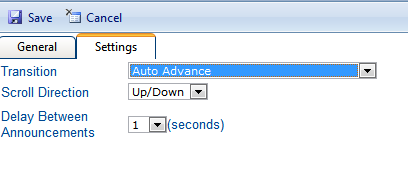
Transition can be set to:
- Auto Advance
- Will automatically scroll to the next announcement after the delay (below) has passed. Users can hover their mouse on the announcement to pause it, but there’s no other user interaction.
- Manual Advance
- The user will have arrow buttons (up/down or right/left depending on the “direction” setting) and manually moves between announcements
- Manual Advance with Delay
- Will automatically move to the next announcement after the delay (below) has passed. The user will have arrow buttons (up/down or right/left depending on the “direction” setting) to manually move between announcements as needed.
- Slide Show Auto Advance
- Each announcement is displayed using the “Effect” setting after the delay.
- Slide Show Manual Advance with Delay
- Each announcement is displayed using the “Effect” setting after the delay. The user will have arrow buttons (up/down or right/left depending on the “direction” setting) to manually move between announcements as needed.
Scroll Direction is the direction that the announcements will scroll. This can be set to Left/right or Up/down.
Effects are used with slide show Transition options only to transition animation between announcements. These can be set to:
- None
- No transition animation
- Fade / Pulse / Crossfade
- Sets a transition animation between announcements.
Delay (seconds) defines the speed at which the announcements should change.
Related Links
My Messages
To Do List
Term Cloud
Rich Text
Poll
Featured Courses
Featured Course Status
Manager Required Courses
Manager News Feed
Direct Reports List
Recently Run Reports